- Published on
- Exercise 5
Running a cluster compliance scan
- Authors
- Name
We've done the work to set the OpenShift Compliance Operator and Red Hat Advanced Cluster Security up on our cluster, now let's make the most of it by using them to schedule and run a compliance scan on our cluster.
For the scan we'll be using the included NIST 800-53 Moderate-Impact Baseline for Red Hat OpenShift and NIST 800-53 Moderate-Impact Baseline for Red Hat OpenShift - Node level scan profiles that are included with the OpenShift Compliance Operator.
Two scan profiles are required as we need to scan both the OpenShift cluster, as well as each individual node running RHEL CoreOS.
For more details on these compliance profiles please take some time to review:
- https://static.open-scap.org/ssg-guides/ssg-ocp4-guide-moderate.html
- https://static.open-scap.org/ssg-guides/ssg-ocp4-guide-moderate-node.html
- https://docs.openshift.com/container-platform/4.14/security/compliance_operator/co-scans/compliance-operator-supported-profiles.html
5.1 - Scheduling a scan
There are two methods you can use to schedule Compliance Operator scans:
- Creating a
ScanSettingandScanSettingBindingcustom resource. This does not require Red Hat Advanced Cluster Security, and can be easily managed by GitOps, however is not beginner friendly and lacks any graphical frontend to easily explore cluster compliance status. For an overview of this approach please take a few minutes to review https://docs.openshift.com/container-platform/4.14/security/compliance_operator/co-scans/compliance-scans.html#compliance-operator-scans - Creating a Scan Schedule in Red Hat Advanced Cluster Security. This is the approach we will be using in this workshop as it is the most intuitive option.
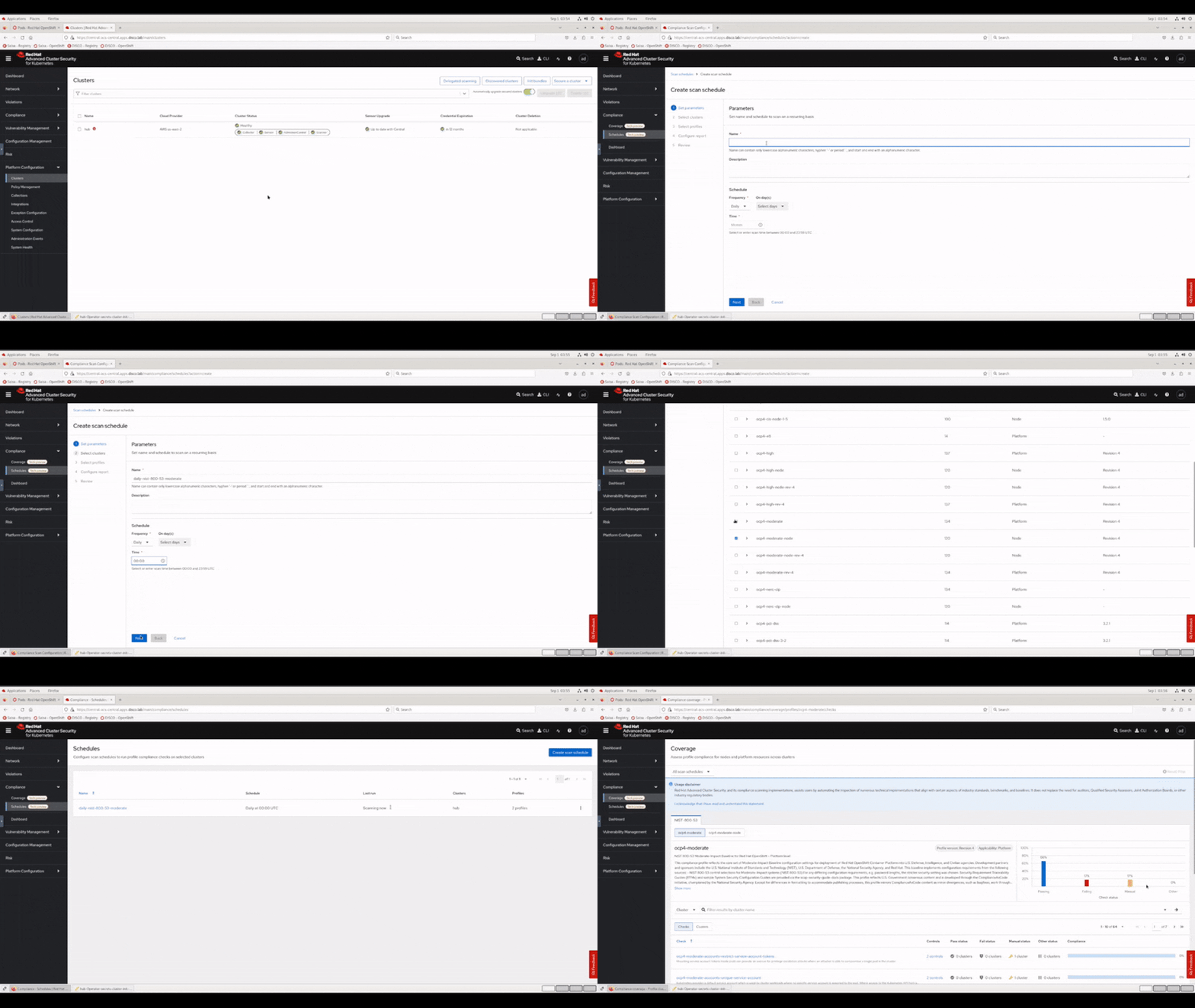
Complete the steps below to create your scan schedule:
- Return to your browser tab in the vnc session with the Red Hat Advanced Cluster Security dashboard open.
- Navigate to Compliance > Schedules in the left hand menu.
- Click the blue Create Scan Schedule button in the middle of the screen.
- Enter the name
daily-nist-800-53-moderateand set the Time field to00:00then click Next. - On the next screen select your
hubcluster, then click Next. - On the profile screen tick
ocp4-moderateandocp4-moderate-node, then click Next. - Click Next once more on the Reports screen and the click Save.
| |
|:-----------------------------------------------------------------------------:|
| Creating a compliance scan schedule in Red Hat Advanced Cluster Security |
|
|:-----------------------------------------------------------------------------:|
| Creating a compliance scan schedule in Red Hat Advanced Cluster Security |
After creating the scan schedule results will be shortly available in the RHACS console. While we wait for the automatically triggered initial scan to complete, let's use the oc cli to review the ScanSetting that was created behind the scenes when we created the Scan Schedule in the RHACS dashboard.
Run the commands below to review your ScanSetting resource:
oc get scansetting --namespace openshift-compliance daily-nist-800-53-moderate

oc get scansetting --namespace openshift-compliance daily-nist-800-53-moderate --output yaml
You should see details output similar to the example below. Notice the more advanced settings available in the custom resource including rawResultsStorage.rotation and roles[] which you may want to customize in your environment.
apiVersion: compliance.openshift.io/v1alpha1
kind: ScanSetting
maxRetryOnTimeout: 3
metadata:
  annotations:
    owner: stackrox
  labels:
    app.kubernetes.io/created-by: sensor
    app.kubernetes.io/managed-by: sensor
    app.kubernetes.io/name: stackrox
  name: daily-nist-800-53-moderate
  namespace: openshift-compliance
rawResultStorage:
  pvAccessModes:
  - ReadWriteOnce
  rotation: 3
  size: 1Gi
roles:
- master
- worker
scanTolerations:
- operator: Exists
schedule: 0 0 * * *
showNotApplicable: false
strictNodeScan: false
suspend: false
timeout: 30m0s
5.2 - Review cluster compliance
Once your cluster scan completes return to your vnc browser tab with the Red Hat Advanced Cluster Security Dashboard open. We'll take a look at our overall cluster compliance now against the compliance profile.
Note: Please be aware of the usage disclaimer shown at the top of the screen "Red Hat Advanced Cluster Security, and its compliance scanning implementations, assists users by automating the inspection of numerous technical implementations that align with certain aspects of industry standards, benchmarks, and baselines. It does not replace the need for auditors, Qualified Security Assessors, Joint Authorization Boards, or other industry regulatory bodies.".
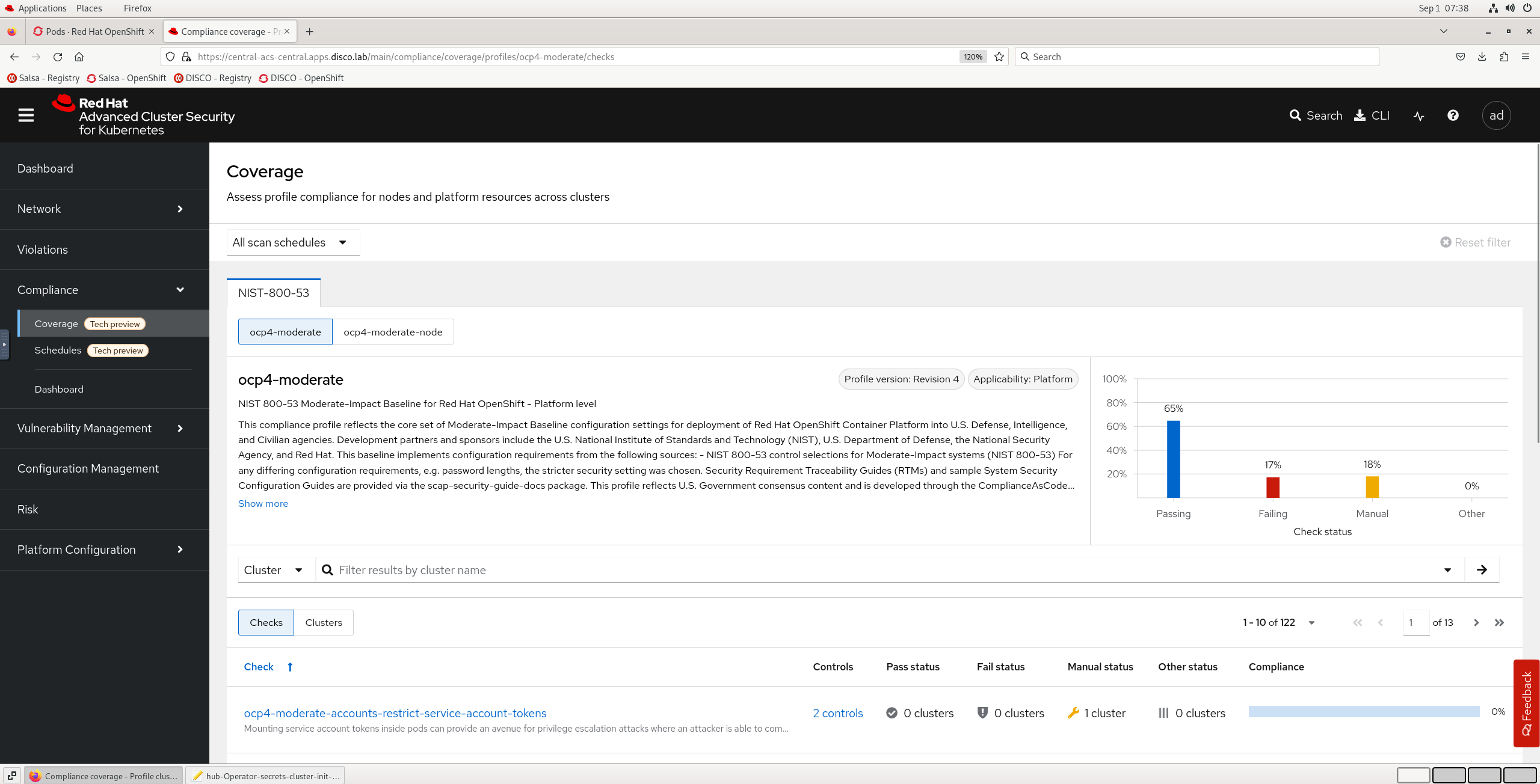
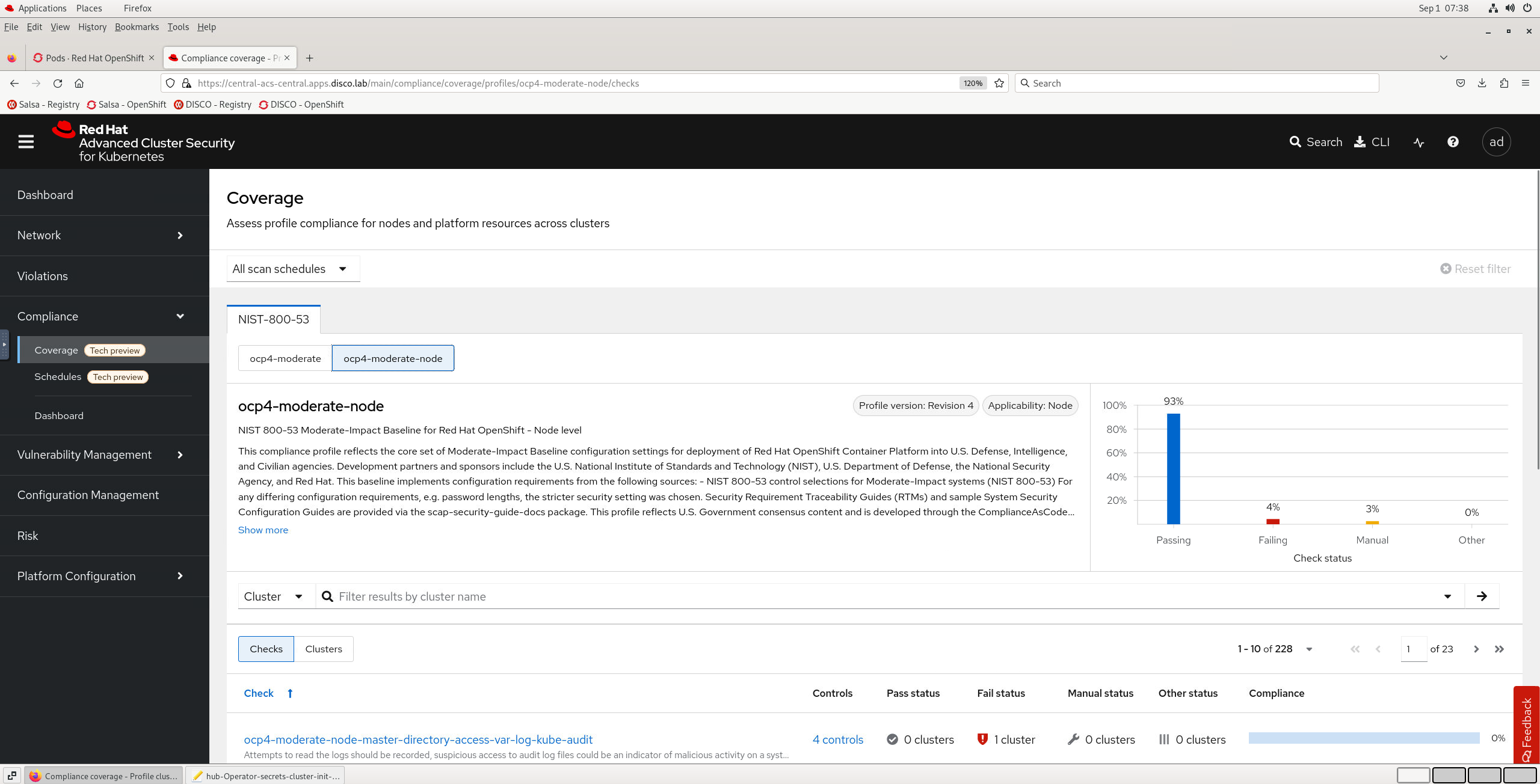
Navigate to Compliance > Coverage and review the overall result for the ocp4-moderate and ocp4-moderate-node profiles. The results should look something similar to the examples below:
| |
|:-----------------------------------------------------------------------------:|
| Compliance scan results in Red Hat Advanced Cluster Security |
|
|:-----------------------------------------------------------------------------:|
| Compliance scan results in Red Hat Advanced Cluster Security |
| |
|:-----------------------------------------------------------------------------:|
| Compliance scan results in Red Hat Advanced Cluster Security |
|
|:-----------------------------------------------------------------------------:|
| Compliance scan results in Red Hat Advanced Cluster Security |
Your cluster should come out compliant with ~65% of the ocp4-moderate profile and ~93% of the ocp4-moderate-node profile. Not a bad start, let's review an example of an individual result now.
5.3 - Review indvidual Manual compliance results
Reviewing the detailed results any checks that are not passing will either be categorised as Failing or Manual. While we do everthing we can to automate the compliance process there are still a small number of controls you need to manage outside the direct automation of the Compliance Operator.
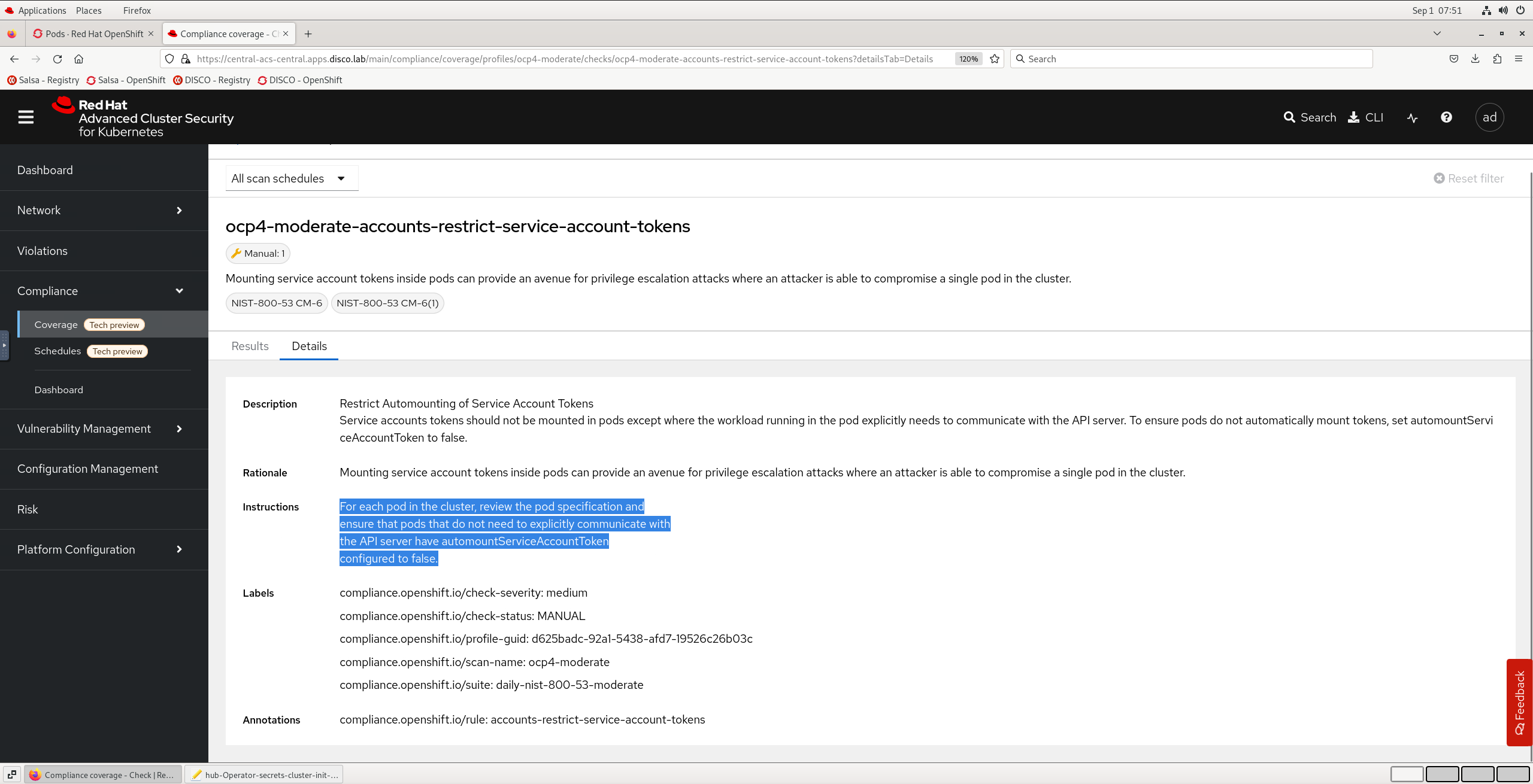
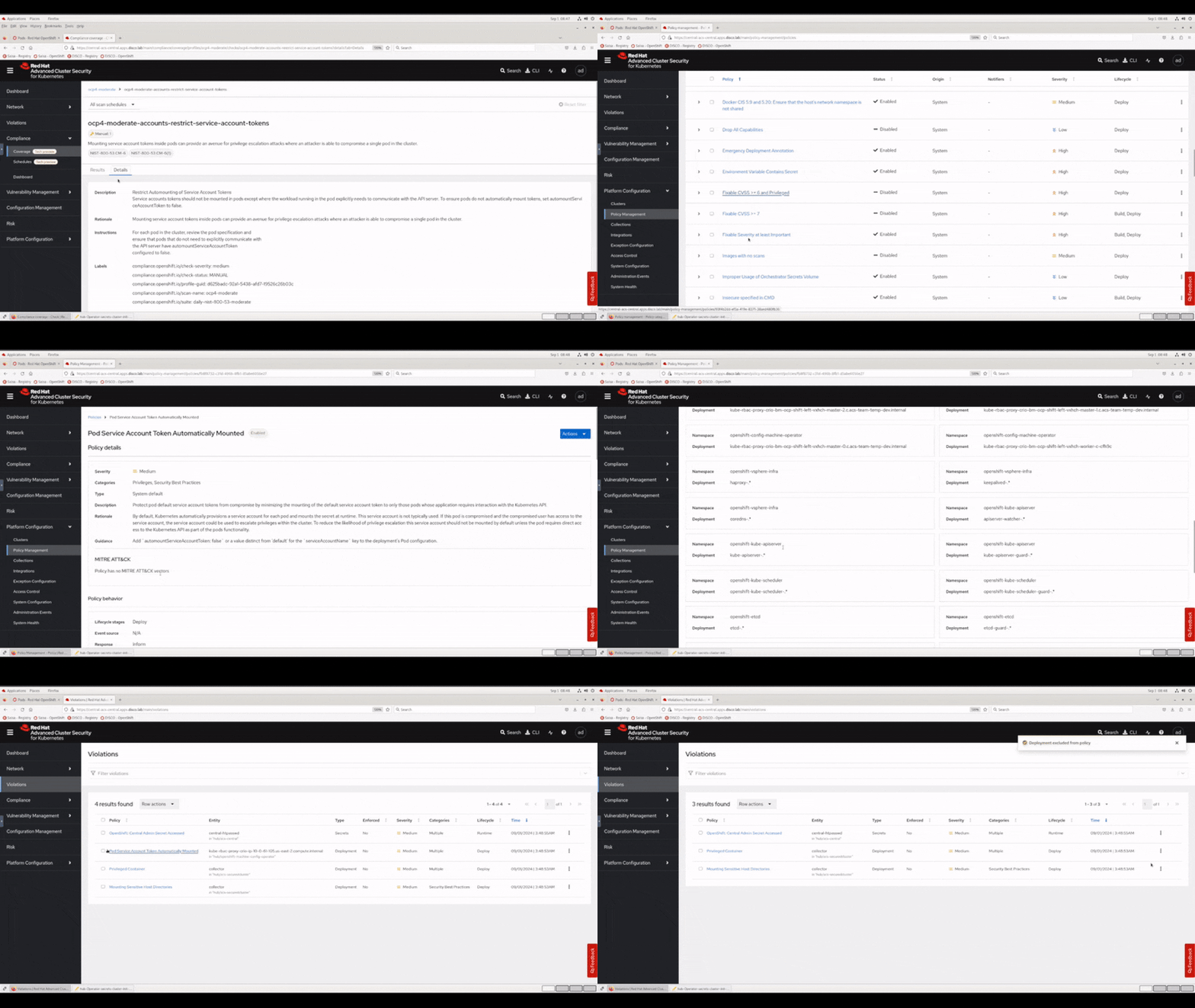
Looking at the ocp4-moderate results for our hub cluster. A good example of a Manual check is ocp4-moderate-accounts-restrict-service-account-tokens. Let's get an overview of the check, the rationale and our instructions to address it manually by clicking into that check in the list, and opening the Details tab. You can jump directly to it with this url: https://central-acs-central.apps.disco.lab/main/compliance/coverage/profiles/ocp4-moderate/checks/ocp4-moderate-accounts-restrict-service-account-tokens?detailsTab=Details
| |
|:-----------------------------------------------------------------------------:|
| Compliance scan result details in Red Hat Advanced Cluster Security |
|
|:-----------------------------------------------------------------------------:|
| Compliance scan result details in Red Hat Advanced Cluster Security |
We can see in this example it's essentially a judgement call. Our instructions are:
For each pod in the cluster, review the pod specification and ensure that pods that do not need to explicitly communicate with the API server have
automountServiceAccountTokenconfigured tofalse.
Now just because this check is classified as Manual, does not mean that we are now all on our own. There are extremely powerful policy engine & policy violation tracking features in RHACS that we can use investigate the status of this check further.
A default policy is available out of the box called Pod Service Account Token Automatically Mounted. By default this policy is in Inform only mode, which means deployments that violate this policy will not be prevented by the RHACS admission controller, or scaled down if already running by the RHACS runtime protection. However we can still use this policy as is to inform on the current state of any cluster in our fleet that is secured by RHACS.
- First let's navigate to Platform Configuration > Policy Management in the left hand menu.
- In the Policy list scroll down to find Pod Service Account Token Automatically Mounted and click the policy title.
- Have a read of the policy details, then scroll down to review the Scope exclusions. You will see Red Hat has already done some work for you to define some standard OpenShift cluster control plane deployments which do need the token mounted and are safely & intentionally excluded from the policy to save you time.
- The policy should already be enabled so let's click on Violations in the left hand menu to review any current instances where this policy is currently being violated. You should have one entry in the list for the
kube-rbac-proxy. This is actually a standard openshift pod in theopenshift-machine-config-operatornamespace, and does actually require the api token mounted, so we could safely add this deployment to our policy exclusions.
| |
|:-----------------------------------------------------------------------------:|
| Reviewing a policy & policy violations in Red Hat Advanced Cluster Security |
|
|:-----------------------------------------------------------------------------:|
| Reviewing a policy & policy violations in Red Hat Advanced Cluster Security |
At this point as a platform engineer we have some flexibility about how we handle this particular compliance check, one option would be to switch the Pod Service Account Token Automatically Mounted policy to Inform & enforce mode, to prevent any future deployments to any cluster in your fleet secured by RHACS from having this common misconfiguration. As a result of implementing this mitigation you could consider adjusting the compliance profile to remove or change the priority of this Manual check as desired. Refer to https://docs.openshift.com/container-platform/4.14/security/compliance_operator/co-scans/compliance-operator-tailor.html
5.4 - Review individual Failed compliance results
For our last task on this exercise let's review a Failed check, and apply the corresponding remediation automatically to improve our compliance posture.
This time, rather than using the RHACS Dashboard we'll review the check result and apply the remediation using our terminal and oc cli.
Let's start by retrieving one of our failed checks:
oc get ComplianceCheckResult --namespace openshift-compliance ocp4-moderate-api-server-encryption-provider-cipher --output yaml
Each ComplianceCheckResult represents a result of one compliance rule check. If the rule can be remediated automatically, a ComplianceRemediation object with the same name, owned by the ComplianceCheckResult is created. Unless requested, the remediations are not applied automatically, which gives an OpenShift Container Platform administrator the opportunity to review what the remediation does and only apply a remediation once it has been verified.
Note: Not all
ComplianceCheckResultobjects createComplianceRemediationobjects. OnlyComplianceCheckResultobjects that can be remediated automatically do. AComplianceCheckResultobject has a related remediation if it is labeled with thecompliance.openshift.io/automated-remediationlabel.
Let's inspect the corresponding ComplianceRemediation for this check:
oc get ComplianceRemediation --namespace openshift-compliance ocp4-moderate-api-server-encryption-provider-cipher --output yaml
You should see output similar to the example below. We can see in the spec: that it essentially contains a yaml resource patch for our APIServer resource named cluster to specify spec.encryption.type be set to aescbc.
apiVersion: compliance.openshift.io/v1alpha1
kind: ComplianceRemediation
metadata:
  annotations:
    compliance.openshift.io/xccdf-value-used: var-apiserver-encryption-type
  labels:
    compliance.openshift.io/scan-name: ocp4-moderate
    compliance.openshift.io/suite: daily-nist-800-53-moderate
  name: ocp4-moderate-api-server-encryption-provider-cipher
  namespace: openshift-compliance
spec:
  apply: false
  current:
    object:
      apiVersion: config.openshift.io/v1
      kind: APIServer
      metadata:
        name: cluster
      spec:
        encryption:
          type: aescbc
  outdated: {}
  type: Configuration
status:
  applicationState: NotApplied
Let's apply this automatic remediation now:
oc --namespace openshift-compliance patch complianceremediation/ocp4-moderate-api-server-encryption-provider-cipher --patch '{"spec":{"apply":true}}' --type=merge
Note: This remediation has impacts for pods in the
openshift-apiservernamespace. If you check those pods quickly with anoc get pods --namespace openshift-apiserveryou will notice a rolling restart underway.
Now it's time for some instant gratification. Let's bring up this compliance check in our vnc browser tab with the RHACS dashboard open by going to: https://central-acs-central.apps.disco.lab/main/compliance/coverage/profiles/ocp4-moderate/checks/ocp4-moderate-api-server-encryption-provider-cipher?detailsTab=Results
You will see it currently shows as Failed. We can trigger a re-scan with the oc command below in our terminal:
Note: Due to the api server rolling restart when this remediation was applied you may need to perform a fresh terminal login with
oc login https://api.disco.lab:6443 --username kubeadmin -p "$(more /mnt/high-side-data/auth/kubeadmin-password)" --insecure-skip-tls-verify=true
oc --namespace openshift-compliance annotate compliancescans/ocp4-moderate compliance.openshift.io/rescan=
Hitting refresh, the check should now report Pass, and our overall percentage compliance against the baseline should have also now increased. Congratulations, time to move on to exercise 6 🚀