- Published on
- Exercise 2
Mirror required content
- Authors
- Name
The disconnected OpenShift cluster you have been allocated is the result of a standard installation for a private cluster on AWS using the IPI install method, and does not have any post installation features added.
During this workshop we want to secure the cluster with Red Hat Advanced Cluster Security, understand our compliance posture against NIST 800-53 with the OpenShift Compliance Operator and then explore some bonus activities like deploying Red Hat Developer Hub.
To install and configure these features we first need to mirror some additional content into our disconnected environment, let's get started.
|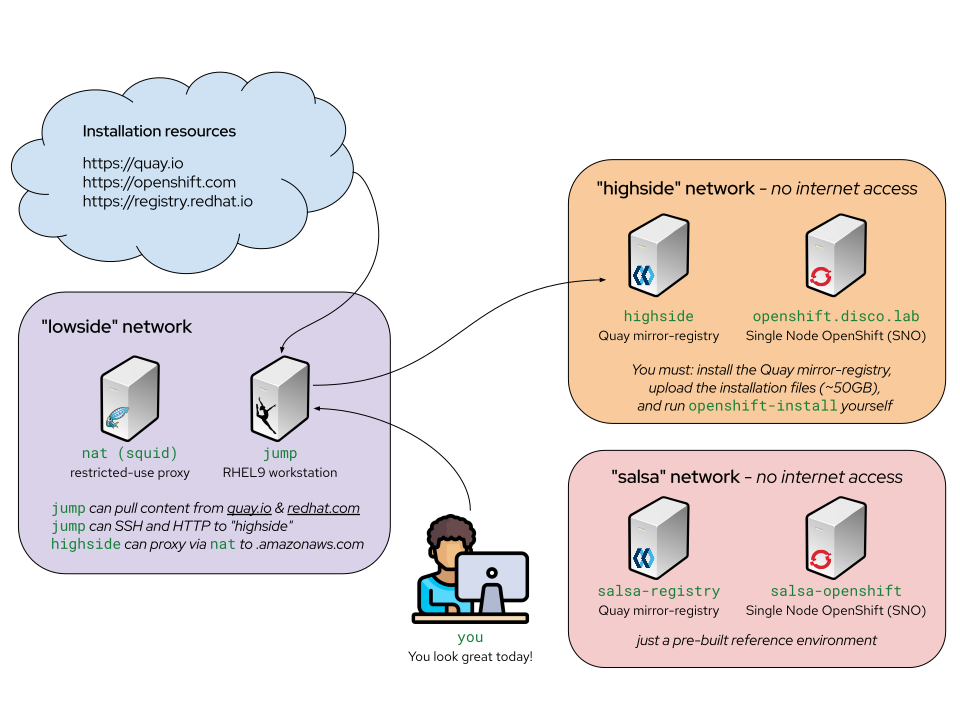 |
|:-----------------------------------------------------------------------------:|
| Workshop environment summary |
|
|:-----------------------------------------------------------------------------:|
| Workshop environment summary |
2.1 - Open a terminal on your low side
Our first step to prepare to mirror content is to get connected to our low side jump host via ssh. You can use the web terminal link in your browser or alternatively your own local terminal with the command below (replacing the placeholder ip with the one you have been allocated).
ssh lab-user@<ip address>
You'll be prompted to enter a password which you can find in your allocated environment details.
After connecting change directory to the low side workspace where the intial cluster installation was already completed for you and review the folder contents:
cd /mnt/low-side-data

ls -lah
Your workspace will look similar to the one below:
[lab-user@jump low-side-data]$ ls -lah
total 21G
drwxr-xr-x. 4 lab-user lab-user 4.0K Sep  2 12:46 .
drwxr-xr-x. 3 root     root       27 Aug 31 22:00 ..
-rw-r--r--. 1 lab-user lab-user  305 Sep  2 12:38 imageset-config.yaml
-rw-r--r--. 1 lab-user lab-user 696M Sep  2 12:37 mirror-registry.tar.gz
-rw-r--r--. 1 lab-user lab-user  20G Sep  2 12:46 mirror_seq1_000000.tar
-rwxr-xr-x. 1 lab-user lab-user 146M Mar 26 22:17 oc
-rwxr-x--x. 1 lab-user lab-user 144M Aug  7 06:30 oc-mirror
-rw-------. 1 lab-user lab-user 160K Sep  2 12:41 .oc-mirror.log
drwxr-xr-x. 3 lab-user lab-user   17 Sep  2 12:38 oc-mirror-workspace
-rwxr-xr-x. 1 lab-user lab-user 631M Aug  7 07:40 openshift-install
drwxr-x---. 2 lab-user lab-user   28 Sep  2 12:46 publish
2.2 - Get familiar with oc-mirror
To mirror content into our disconnected environment we will be using the oc-mirror openshift client utility.
To configure what content oc-mirror will download and mirror for us we use a YAML formatted file called an ImageSetConfiguration. This file declares:
- What to download which can include (OpenShift itself, operator bundles, helm charts, or specific container images)
- What versions of each item to download
- Where to store the downloaded content
The oc-mirror utility also has some features for listing available content for mirroring, let's try that now! Run the following commands in your ssh terminal:
# List available openshift release versions
oc-mirror list releases

# List operator catalogs for a specific openshift release
oc-mirror list operators --catalogs --version=4.14

# List all operators in a specific catalogs
oc-mirror list operators --catalog registry.redhat.io/redhat/redhat-operator-index:v4.14
Using the built in help have a go at using oc-mirror to identify details of a specific operator.
We can also use the oc-mirror utility to understand the state of any existing mirror content bundles. We have a content bundle called mirror_seq1_000000.tar available from the initial installation of your OpenShift cluster, let's inspect that now.
oc-mirror describe mirror_seq1_000000.tar | more
This bundle archive was created by the oc-mirror utility using the configuration file called imageset-config.yaml which is also in the same directory. Let's review that file:
cat imageset-config.yaml
Your file should look something like the example below, we can see the the 4.14.35 version of OpenShift is specified to be downloaded, along with the registry.redhat.io/rhel8/support-tools additional standalone container image.
kind: ImageSetConfiguration
apiVersion: mirror.openshift.io/v1alpha2
storageConfig:
  local:
    path: ./
mirror:
  platform:
    channels:
    - name: stable-4.14
      type: ocp
      minVersion: 4.14.35
      maxVersion: 4.14.35

  additionalImages:
  - name: registry.redhat.io/rhel8/support-tools
2.3 - Confirm local cache is up to date
A local cache of content already exists from when the cluster installation was initially performed in advance of this workshop. Let's confirm everything is still up to date by re-running the oc-mirror command specifying our configuration file and the location on our disk.
oc-mirror --config imageset-config.yaml file:///mnt/low-side-data --verbose 3
Note: This command may take several minutes to complete but should complete with
No new images detected, process stoppingto confirm the existing cache is up to date.
2.4 - Add new mirror content
For our workshop exercises today we need to mirror some additional operators, namely the OpenShift Compliance Operator, Red Hat Advanced Cluster Security, and Red Hat Developer Hub. Run the command below to update your imageset-config.yaml file to match the example below
cat << EOF > /mnt/low-side-data/imageset-config.yaml
kind: ImageSetConfiguration
apiVersion: mirror.openshift.io/v1alpha2
storageConfig:
  local:
    path: ./
mirror:
  platform:
    channels:
    - name: stable-4.14
      type: ocp
      minVersion: 4.14.35
      maxVersion: 4.14.35
  operators:
  - catalog: registry.redhat.io/redhat/redhat-operator-index:v4.14
    packages:
    - name: rhdh
      channels:
      - name: fast
        minVersion: '1.1.1'
        maxVersion: '1.1.1'
    - name: compliance-operator
      channels:
      - name: stable
    - name: rhacs-operator
      channels:
      - name: stable
  additionalImages:
  - name: registry.redhat.io/rhel8/support-tools
  helm: {}
EOF
After updating the configuration file we can re-run our oc-mirror command to bring the new content into our local collection on disk in /mnt/low-side-data.
oc-mirror --config imageset-config.yaml file:///mnt/low-side-data --verbose 3
Note: This command may take up to 10 minutes to complete depending on connection speeds.
2.5 - Mirror updated content to high side registry
Once the local mirror update has completed we now need to transfer this content to our high side and mirror it from disk into the OpenShift Mirror Registry running in our disconnected high side.
In this workshop we will use rsync to copy our content to our high side system, let's do that now:
rsync -avP /mnt/low-side-data/ highside:/mnt/high-side-data/
Note:
oc-mirrorcreates incremental mirror content files in order to prevent duplicating content. You will notice your low side mirror workspace includes a new filemirror_seq2_000000.tarwhich is significantly smaller than the original mirror archive.
Once the transfer has completed we need to log into our high side disconnected system and run oc-mirror from that side to upload the content from the new archive into our disconnected container registry
ssh highside
cd /mnt/high-side-data
podman login -u init -p discopass $(hostname):8443
oc-mirror --from=/mnt/high-side-data/mirror_seq2_000000.tar docker://$(hostname):8443
2.6 - Verify new operators are available
After a couple of minutes the mirror process will complete. We then need to tell OpenShift about the new content that is available by running the commands below.
oc login https://api.disco.lab:6443 --username kubeadmin -p "$(more /mnt/high-side-data/auth/kubeadmin-password)" --insecure-skip-tls-verify=true
for file in $(find ./oc-mirror-workspace -type f -name '*.yaml'); do oc apply -f $file; done
Note: In our
oc-mirror-workspacedirectory each time we mirror new content a newresults-<id>directory will be created which may containimageContentSourcePolicy.yamlorcatalogSource-cs-<index>.yamlfiles which we need to apply to our cluster to tell it about the new content that is available.
Once the updates are applied we can then check that our new operators are available in the OpenShift Web Console using our browser based vnc session:
- Open your vnc browser tab
- Use the left menu panel, click Settings and then select Remote Resizing as the scaling mode to improve viewing experience.
- Click Connect and when prompted enter the password in your environment spreadsheet row, then click Send credentials.
- A Firefox browser window should already be open, you can manually start if using the top left applications menu if needed.
- Click the bookmark toolbar option for DISCO - OpenShift.
- Log in when prompted with the username kubeadmin and the kubeadmin password listed in your environment spreadsheet (you can also find this password in your highside bastion ssh session by running
cat /mnt/high-side-data/auth/kubeadmin-password). Note that to paste in the web based vnc session you need to use the left hand panel to pass the clipboard content through to the session. - Navigate to Operators on the left menu, and then click OperatorHub, you should see the newly mirrored operators are now available in your disconnected cluster!
|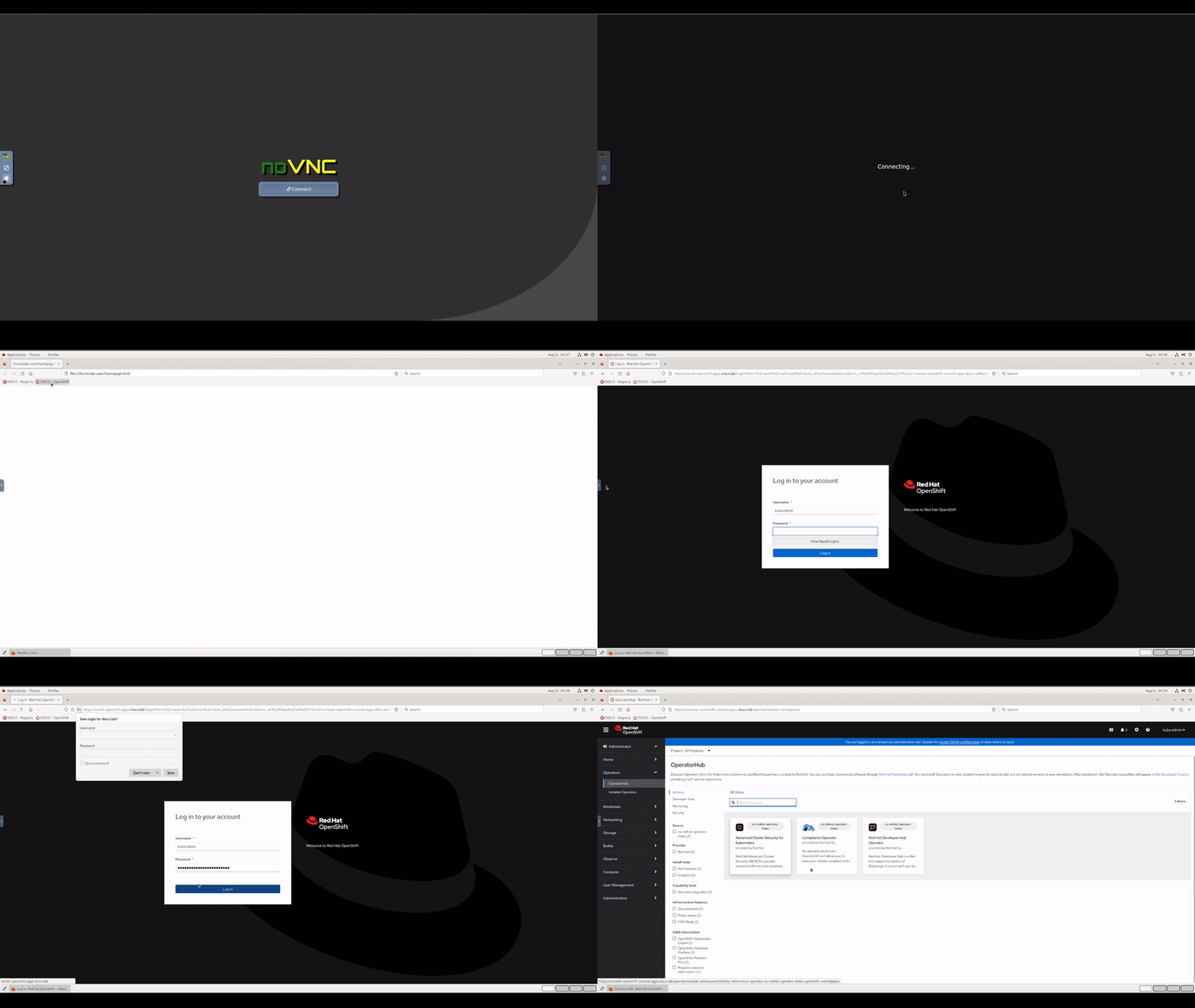 |
|:-----------------------------------------------------------------------------:|
| Check disconnected operator hub |
|
|:-----------------------------------------------------------------------------:|
| Check disconnected operator hub |
If your mirroring has completed successfully you are ready to move on to exercise 3 and install the three new operators 🎉